Overview & Quickstart
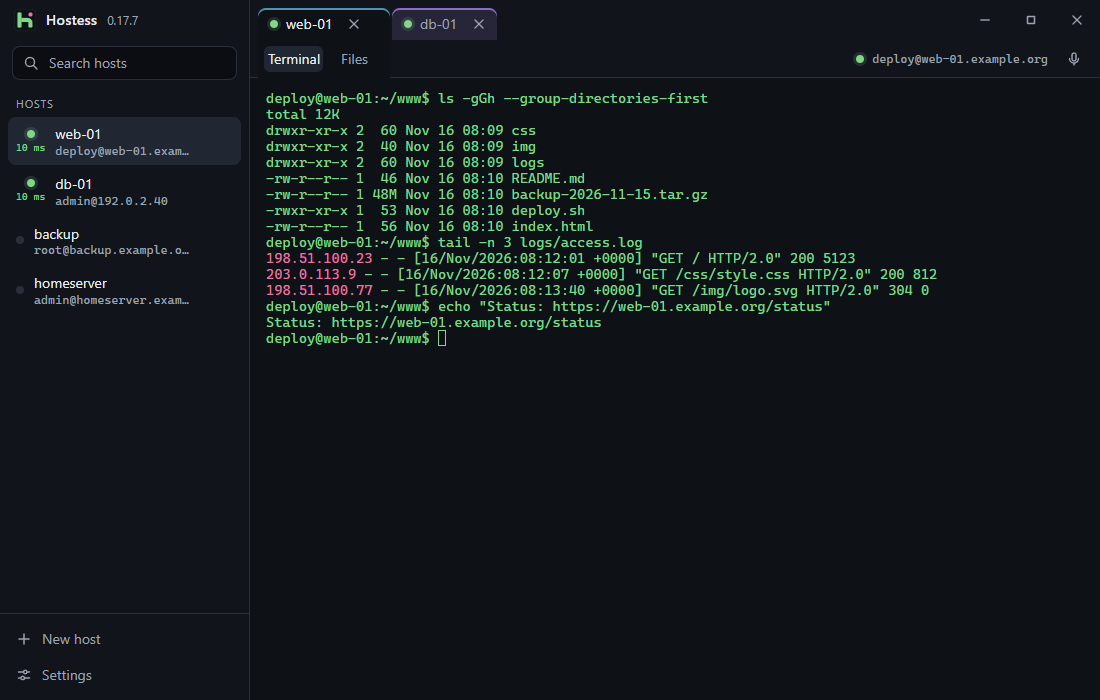
Hostess is a fast, free SSH and SFTP client for Windows 10 and 11. A tabbed terminal, file manager, port forwarding (-L / -R), key management and local voice input live in one small window (~9 MB) — no account, no cloud, no subscription.
1. Install
- Download the current installer from the Hostess home page.
- Run
Hostess_<Version>_x64-setup.exe.
Windows SmartScreen notice on first launch
The installer is not code-signed with a paid publisher certificate yet. On first launch, click More info → Run anyway. Every subsequent in-app update is cryptographically signed and verified by Hostess before installation.
2. Add or import your first host
You have two quick options after launching Hostess:
- Import your existing
~/.ssh/config: Click New host in the bottom-left sidebar → click Import at the top of the dialog. Hostess imports your hosts, users, ports and key paths directly fromC:\Users\<You>\.ssh\config. - Add manually: Click New host. Tip: paste
[email protected]:2222(even withsshin front) straight into Address — Hostess splits user, host and port automatically.
3. Connect
- Click any host in the sidebar to open a tab and connect.
- Or type into Search hosts at the top left and press Enter to connect to the first match immediately.
- On first connect, Hostess displays the server's SHA-256 fingerprint. Credentials are never sent until you confirm the server key.
Window layout at a glance
| Area | Purpose |
|---|---|
| Left sidebar | Host search, saved hosts with status dot and live latency (ms), update banner, New host and Settings |
Terminal \| Files |
Switcher right below the active tab — SFTP reuses the same SSH connection |
+ Tunnels |
Right side of the header: add, save and toggle local (-L) and remote (-R) port forwards |
| Microphone button | Starts or stops local voice input (Ctrl+Shift+M) |