File Manager (SFTP) & Direct Editing
Click Files right below the active tab to open the graphical SFTP file manager over the existing SSH session — no second login required.
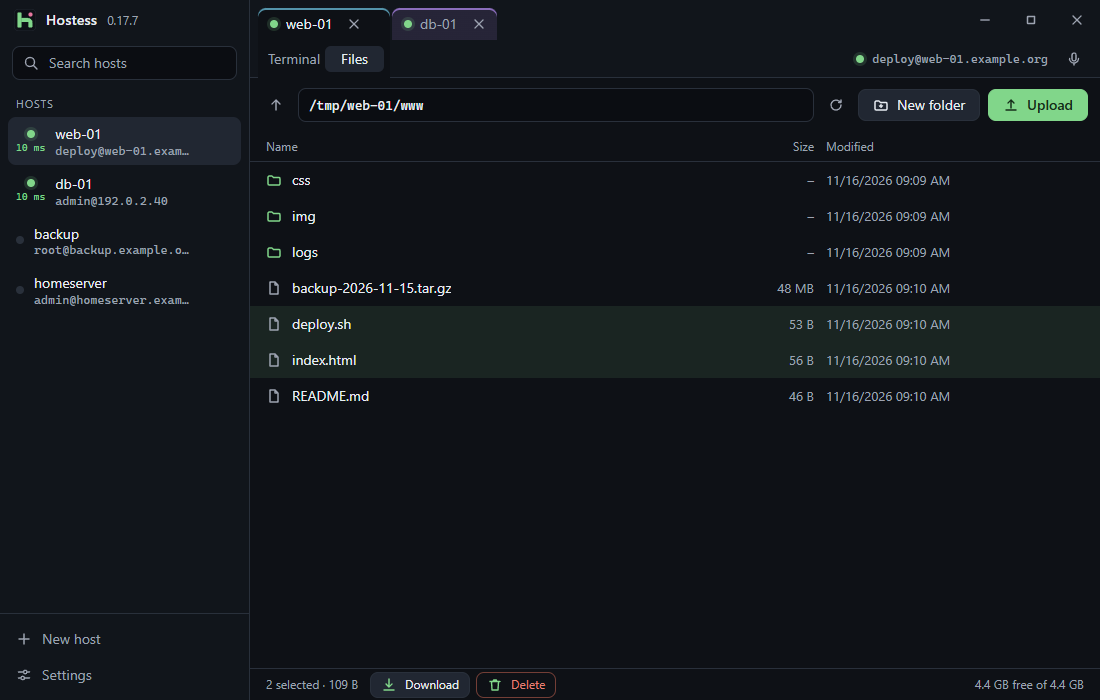
Explorer-style navigation
| Key / Action | Effect |
|---|---|
| Single click | Select item (Ctrl toggles individual items, Shift selects a range, or drag a selection box with the mouse) |
| Double-click / Enter | Enter folder · Open file directly for editing |
| Backspace | Go up one folder |
| Up / Down / Home / End | Move selection (Shift extends selection) |
| Ctrl+A / Esc | Select all / Clear selection |
| F2 | Rename selected item |
| Del | Delete selected items (with confirmation) |
| Click column header | Sort by Name, Size, or Modified ascending/descending (folders stay on top) |
Transferring files & folders (dual SFTP channels)
- Upload: Use Upload, Upload folder, or drag files and folders straight from Windows Explorer into the file list.
- Download: Right-click → Download (or use the status bar action for multi-selection).
- Safe
.partstaging: Transfers write to a temporary.partfile first and replace the target only once complete. Cancelling or losing connection never corrupts the existing file. - Keep browsing during large transfers: Bulk transfers run on a dedicated second SFTP channel — while a large upload or download runs in the status bar, you can continue navigating folders, sorting, and editing files without waiting.
Editing remote files directly
Double-clicking a file (or right-clicking → Edit) downloads it to a session-scoped temp folder and opens it in your associated Windows editor (falling back to notepad.exe):
- Save to upload: Whenever you save (Ctrl+S), Hostess hashes the file and automatically uploads changes back to the server while preserving symlinks and permissions.
- Survives reconnects: If your connection drops briefly and you press Enter to reconnect the tab, pending saves automatically upload once reconnected.
- Safety prompts: Hostess asks for confirmation before opening executable/script extensions (
.exe,.bat,.cmd,.ps1,.lnk, …) or files larger than50 MB, and cleans up temporary files when the tab closes.
Symlinks (↪), disk usage & permissions (chmod)
- Symlinks: Marked with
↪and a tooltip showing their target (→ …). Deleting a symlink removes only the link itself via SFTP — never the target directory. - Permissions (
chmod): Right-click → Permissions provides an octal input (755,644), a 3×3 checkbox matrix (Owner / Group / Others), and optional recursive application on folders (with a warning if owner execute permission is missing). - Server disk space: Shown in the bottom-right status bar (amber at 90%, red at 97%).